ToolsHow-to guide
How to create a QR code
Create a styled QR code for a link or text, add a logo, and download it as PNG or SVG.
Updated: 2 November 2026हिंदी में पढ़ें
On this page
The QR Code Generator turns any link or text into a scannable QR code. Style it with a template, change its colours, add a logo in the centre, and download it as a PNG or SVG image.
Everything runs in your browser — the text you type and any logo you upload never leave your device.
Create a basic QR code
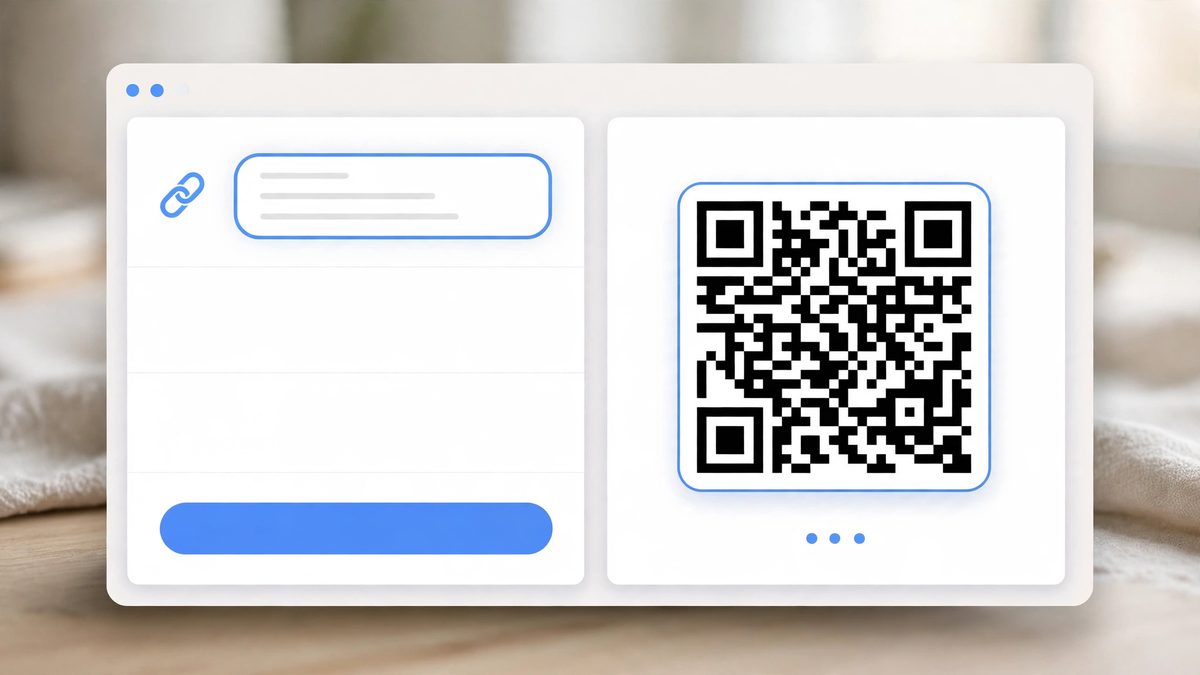
- Open the QR Code Generator.
- Type your link or text in the
Text or URLbox. A sample link is already filled in, so you can see a code right away. - The preview updates as you type. When the code looks right, click
Download PNGorDownload SVG.
The sections below cover styling and downloads.
Pick a template
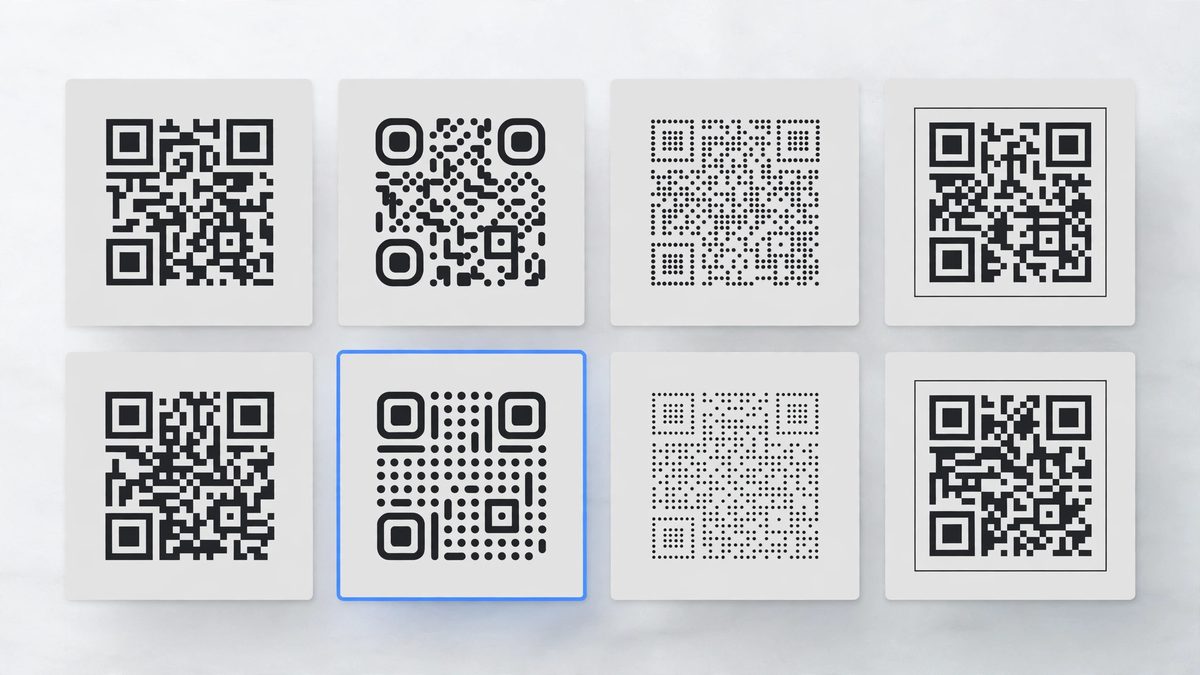
Under Templates are eight ready-made styles. Click any preview to apply it:
- Classic — square modules and square corner eyes.
- Rounded — modules and corner eyes with rounded corners.
- Dots — the code is drawn with dots and round corner eyes.
- Scan Me — a rounded code with a
SCAN MEband underneath it. - Circle — rounded code with round eyes, inside a circle frame.
- Aperture — square modules with round eyes, inside a dashed aperture-style ring.
- Ocean — a rounded code in dark blue.
- Rose — a dotted code in dark rose.
Picking a template sets the module shape, corner eyes, frame and colours in one click. You can still change any of those afterwards.
Change the style
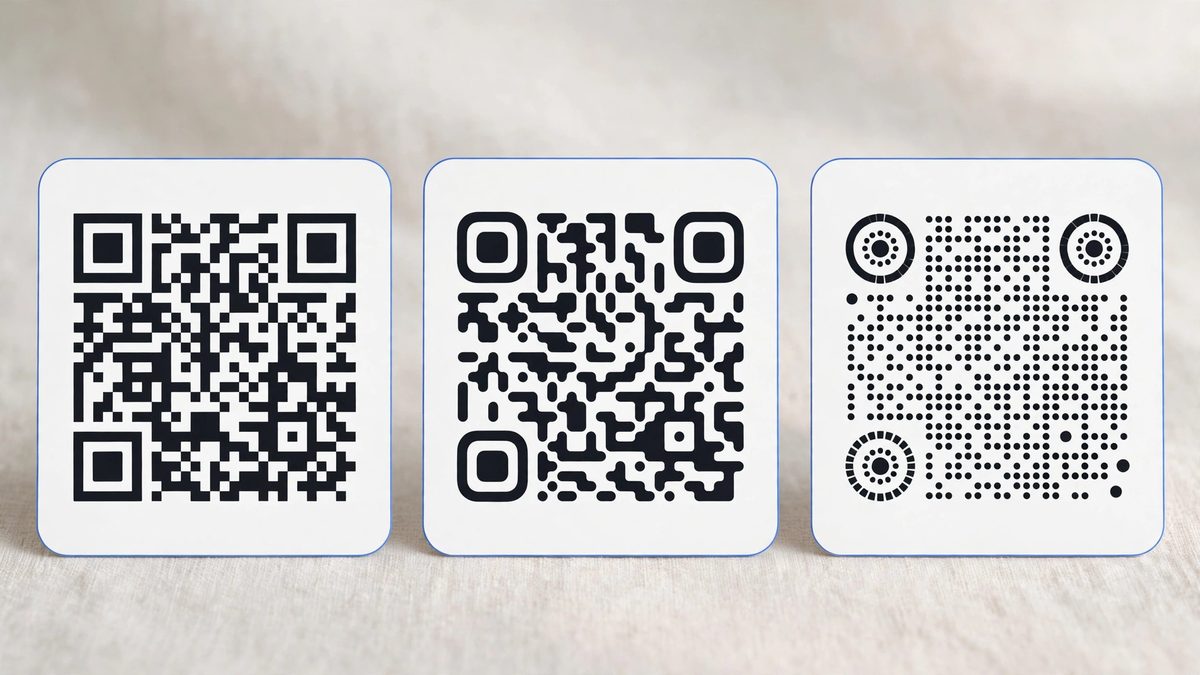
Under Style there are three controls:
- Module shape —
Square,RoundedorDots. The shape of the small blocks that make up the code. - Corner eyes —
Square,RoundedorCircle. The three large squares in the corners that scanners use to find the code. They always stay solid so the code keeps scanning. - Frame —
None,Scan Me,CircleorAperture. A frame sits around the code;Scan Meadds a text band below it.
Change the colours
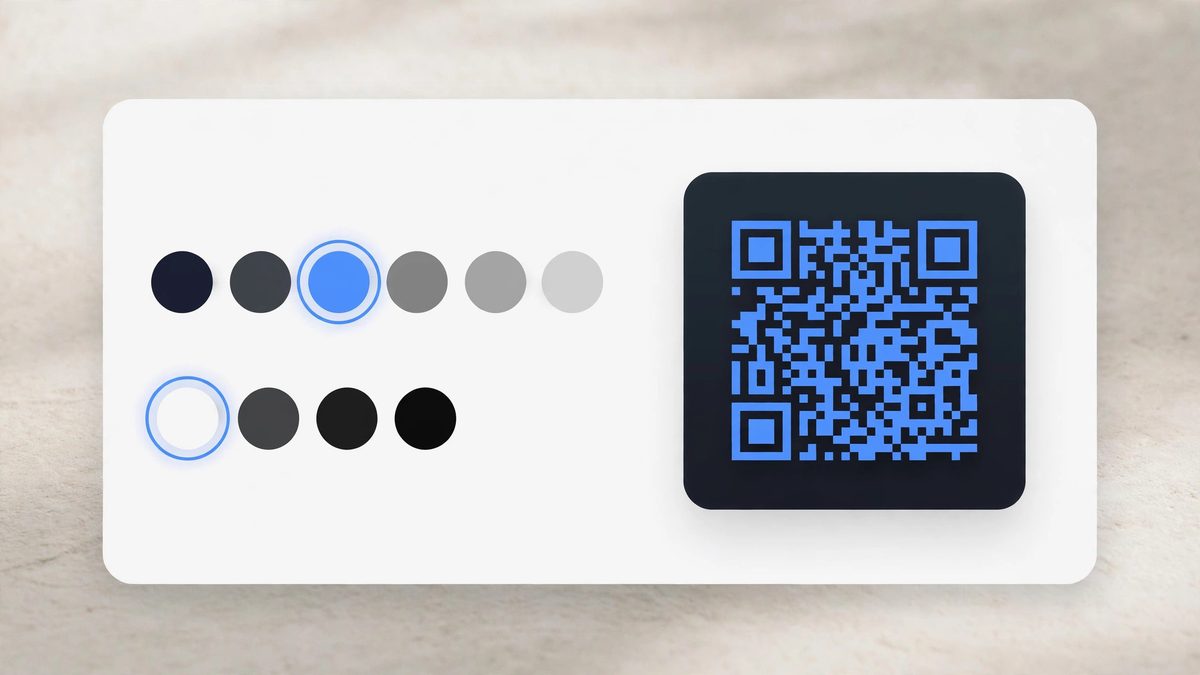
Under Colors you can set the Code color and the Background:
- Use the colour picker, or type an exact hex value (for example
#0f172a) in the hex box next to it. It must be in#rrggbbformat — anything else shows an error. - Six ready-made code colours are offered as round swatches. Click one to apply it.
Two warnings can appear here:
- Low contrast — the code and background are too close in brightness, which makes scanning hard. Pick a darker code colour or a lighter background.
- Light code on a dark background — most scanners cannot read this. Dark codes on light backgrounds scan best.
Add a logo
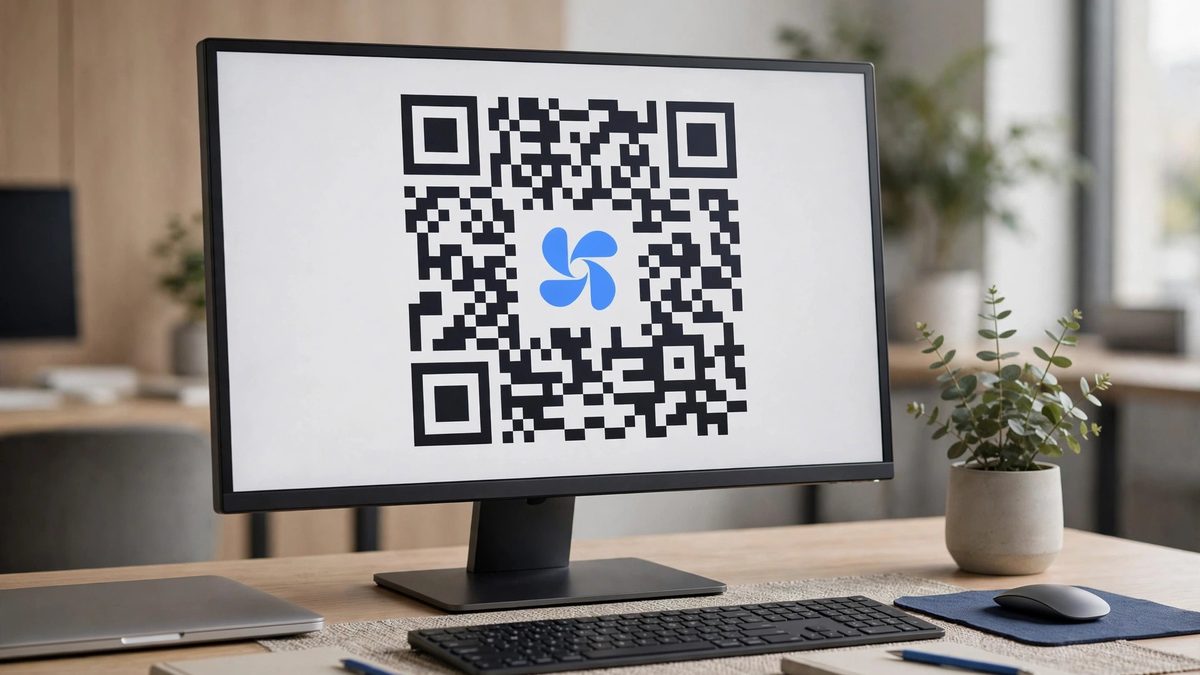
- Under
Logo, clickUpload logoand choose an image file (up to 2 MB). - Use the
Logo sizeslider to set how large the logo is: 10% to 30% of the code width, starting at 22%. Bigger is not always better — too large a logo can break scanning. - To remove the logo, click
Remove.
Two things happen automatically when a logo is added. Error correction is fixed at H (30%), because the code needs extra redundancy to stay readable with its centre covered. On very small codes the logo size may also be limited below your slider value, with a note explaining why, to keep the corner eyes scannable.
Error correction
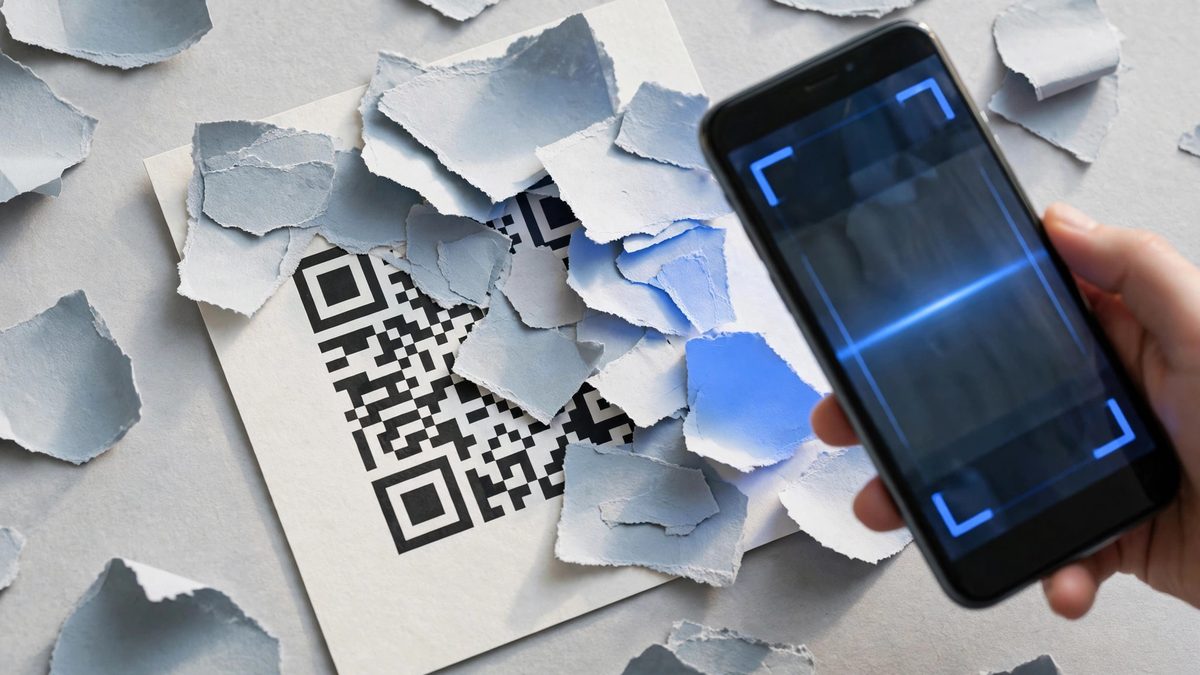
Under Error correction you can choose how much damage the code can survive and still scan:
M (15%)— the default, fine for most uses.Q (25%)— more redundancy for codes that may get printed small or damaged.H (30%)— the most redundancy, also used automatically when a logo is present (the control locks while a logo is attached).
Higher error correction makes the code denser, so for very long text, stay at M unless you need the extra safety.
Download the code
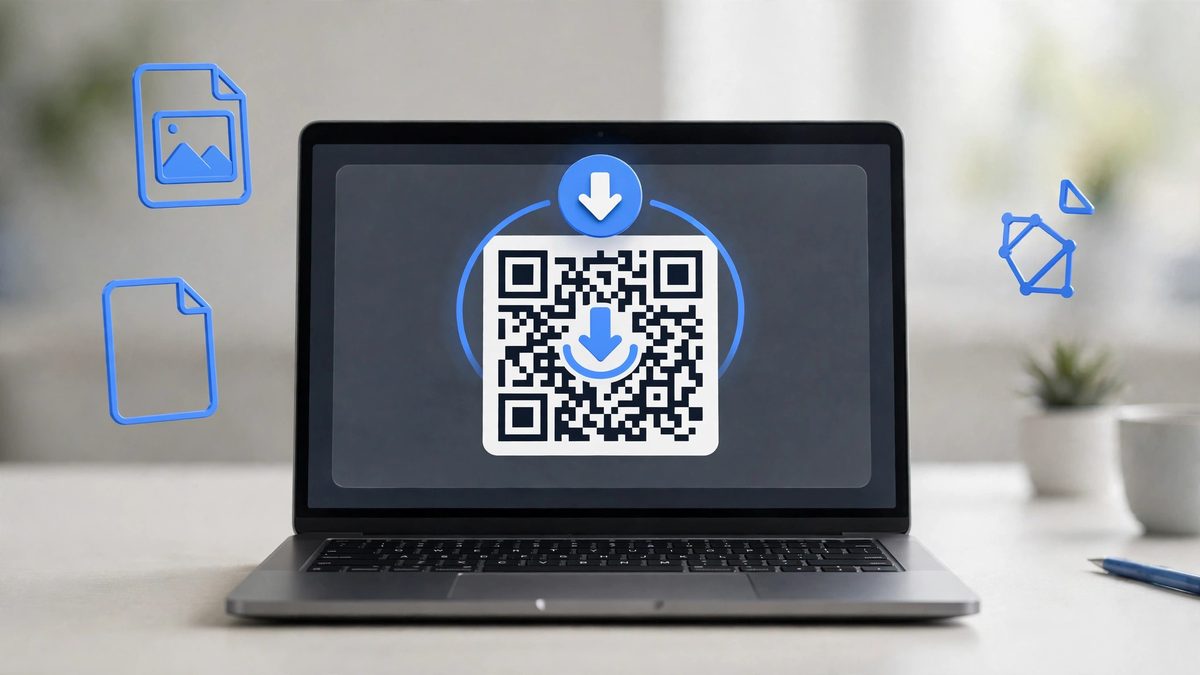
- PNG size — choose
256 px,512 pxor1024 px. The default is 512 px, which suits most screens and documents. Pick 1024 px for print. - Click
Download PNGfor a ready-to-use image, orDownload SVGfor a vector file you can scale to any size.
If your text is too long, an error message appears instead of the preview. Shorten the text — for example, use a shorter link — and the code renders again.
Tips
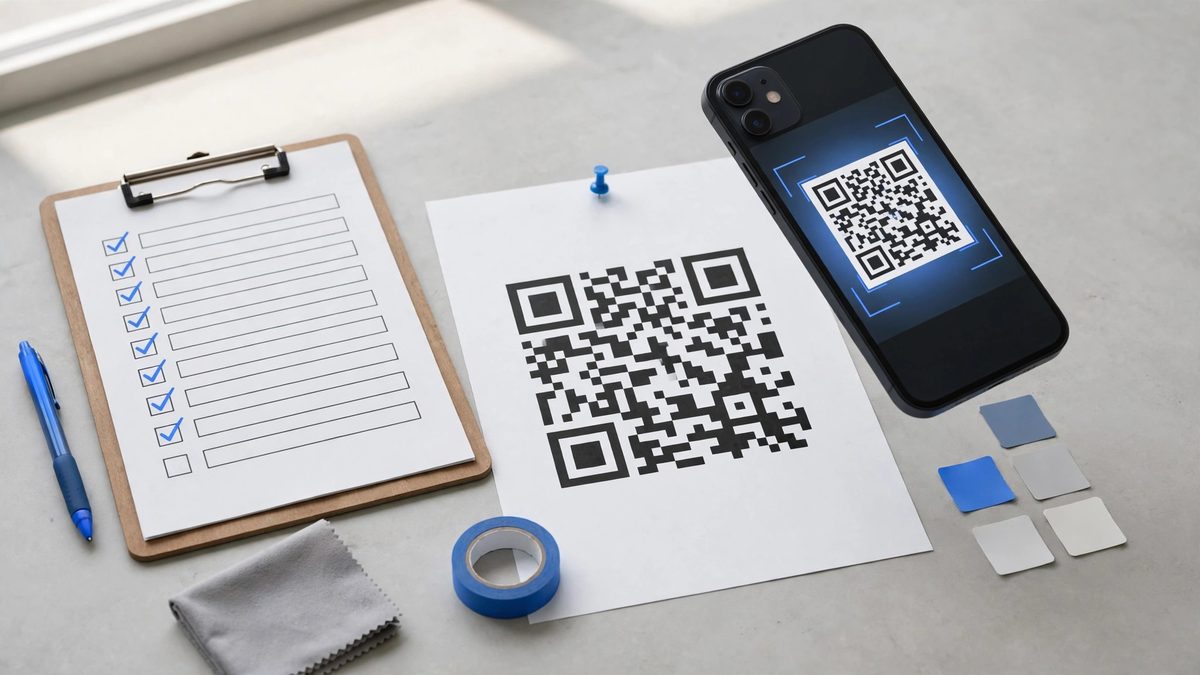
- Test the finished code with your phone camera before printing or publishing it, especially after changing colours or adding a logo.
- Keep the code on a light background with a dark code colour for the most reliable scanning.
- For printed material, download the PNG at 1024 px or the SVG, so the code stays sharp.