AppsHow-to guide
How to work with PDFs using PDF Tools
Merge, split, compress, convert, and more with PDF Tools — 11 tools that run entirely in your browser.
Updated: 2 November 2026हिंदी में पढ़ें
PDF Tools is a set of 11 free PDF tools that run 100% in your browser. There are no uploads, no accounts, and no servers involved — your files are processed on your own device.
Open it at dusmamud.github.io/pdf-tools/.
The 11 tools
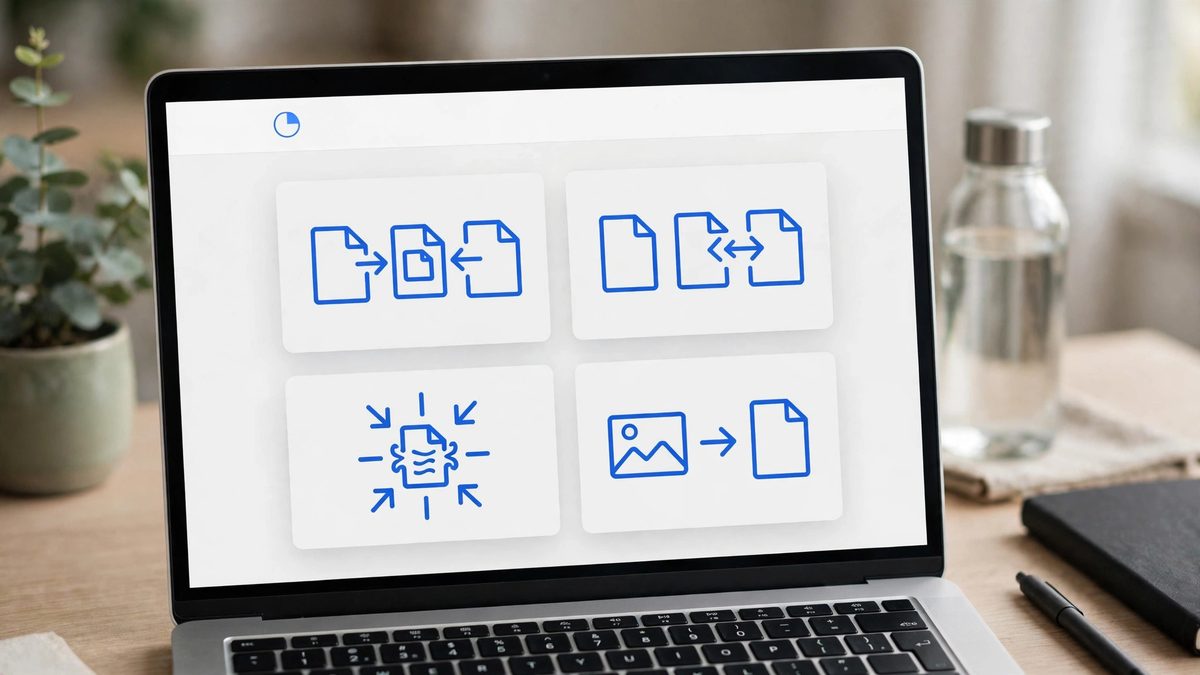
- Merge — combine several PDFs into one document.
- Split — break one PDF into separate files.
- Compress — shrink a PDF’s file size.
- JPG to PDF — turn JPG images into a PDF.
- PDF to JPG — turn PDF pages into JPG images.
- Rotate — rotate pages that are sideways or upside down.
- Organize — reorder, add, or remove pages.
- Watermark — stamp text across your pages.
- Page Numbers — add page numbers to a document.
- Unlock — remove a PDF’s password protection.
- Protect — add a password to a PDF.
Which tool do I need?
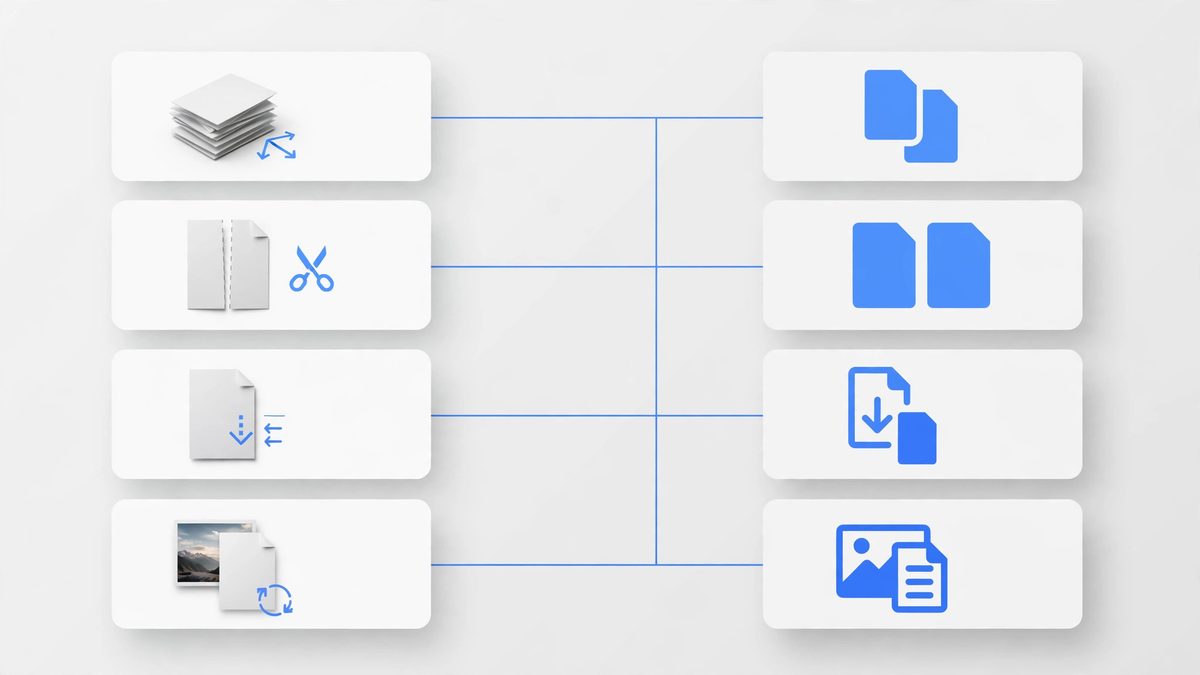
- Several files into one document → Merge.
- One file into several documents → Split.
- A file that is too big to send → Compress.
- Photos that need to become a document → JPG to PDF.
- Pages you want as images → PDF to JPG.
- Pages in the wrong orientation → Rotate.
- Pages in the wrong order, or pages to drop → Organize.
- Text stamped across pages → Watermark.
- Numbers on every page → Page Numbers.
- A password to remove → Unlock.
- A password to add → Protect.
Use any tool
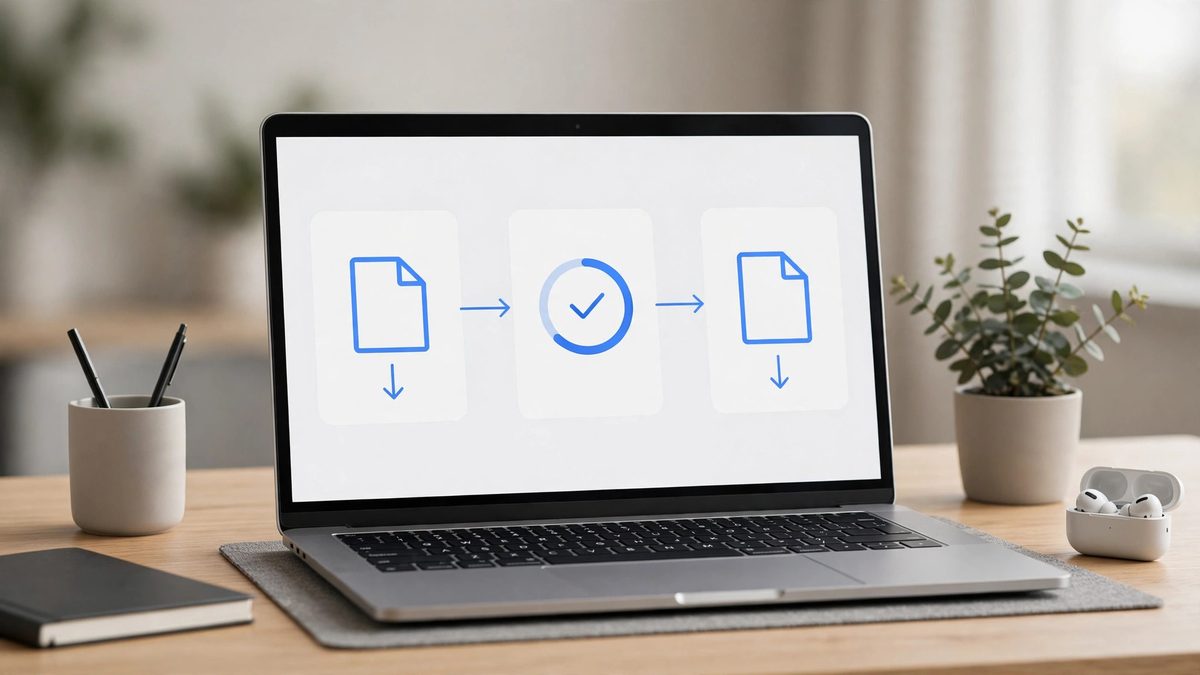
The flow is the same for every tool:
- Open PDF Tools and pick the tool you need from the grid.
- Add your file or files to the tool.
- Adjust the tool’s options for what you want to do.
- Process the file and download the result.
Heavy files are handled in background workers, so the page stays responsive while processing runs.
Tips
- Do conversions before edits. If you need a JPG as part of an edited PDF, convert it to PDF first, then use Merge or Organize on the result — each tool does one job, and chaining them in order is the simplest path.
- Check page order after organizing. After reordering or removing pages, glance through the result before downloading — it is quicker to fix the order now than to re-run the tool.
- Keep a copy of the original. Tools like Compress, Unlock, and Protect change the file itself. Download the result as a new file and keep your original untouched, in case you need it again.
- Your files never leave the device. Because everything runs in the browser, you can use these tools for sensitive documents without sending them to any server.